Here is a new version of the Agent Maintenance Mode MP. This version is only for OpsMgr R2 as it leverages the new powershell modules only available in R2.
--Update--
Read this post if this is not working for you -Permissions Required for Agent Maintenance Mode
The readme has also been updated with this info
----
To recap on this solution:
It allows you to start Maintenance Mode from an monitored server using just a vbscript. Using this requires absolutely no permissions in Operations Manager. All of the components required to have this function are part of a standard OS with an agent installed. It works through Gateways so can be used in firewalled or untrusted environments.
The MaintMode.vbs writes an event to the event log that indicates the length of time Maintenance Mode should remain on. This is picked up by the management pack and processed on the RMS to turn on Maintenance Mode for that server. The on time can be specified in days, hours or minutes.
Download here
The zip file contains a Readme with more information and usage instructions.
Highligh of changes in this version:
Management Pack Changes
* Added Powershell modules in MP (R2 feature) to replace scripts on RMS. Some logic reworking in scripts
* Support for Server 2008
* Fixed ON/Off logic to not put Health Service and Health Service Watcher in to Maint Mode as R2 puts HS and HSW in to MM automatically
• Added Maint Mode event collection rules
• Added Schedule Maint Mode text file option at C:\MaintenanceModeSchedule.txt - origional by Steve Rachui - http://blogs.msdn.com/steverac/archive/2008/12/09/maintenance-mode-by-config-file.aspx
* Disables discovery on RMS as Maintenance Mode should not be used on RMS
MaintMode.vbs
* Now logs the username in the event log of who turned it on: “Maintenance Mode: ON for 6 hour(s): 360 . Turned on by domain\user”
* Adds registry markers to indcate current status under HKLM/Software/OpsMgr/Maintenance Mode. Can be used by patching tools.
* Added STATUS option that reads current status from registry.
Showing posts with label Agent. Show all posts
Showing posts with label Agent. Show all posts
Wednesday 18 November 2009


Thursday 9 August 2007
Active Directory Agent Assignment using a database
The post over on System Center forum about Using Property Bags with Custom Scripting in Operations Manager 2007 has helped me to solve a problem I was having with doing Active Directory based Agent Assignment using a database. This is for integration with a CMDB type database to control agent assignment.
This will take the form of a rule that runs a script to query a database and returns multiple property bags with each property bag containing the dnshostname and distinguished name of each computer that is to be assigned to a management server.
The output fo this script can then be passed to the AD writer action that writes the computer objects to the relevant security groups in the management group OU under the Operations Manger OU.
The rule that is generated by the GUI using the LDAP provider to perform the LDAP query and returns a result for each object found and passes each result seperatley to the Ad Writer rule. This is where the multiple property bags comes in as the of the AD Writer action expects multiple inputs that can only be provided, as far as I can determine, by using multiple property bags.
The rule will run on each management server and the script will simply query the database for the agents belonging to that management server. All the load balancing will be done by the database itself.
I will be have more on this rule in future posts.
Friday 13 July 2007
Some Ops manager Agent Stuff
We had some problems every time we built a new management group in our lab. All the old agents would still be trying to report to the old management group. This was a pain because all this did was clutter up the Operations Manager Log. The solution we used was to create a task that would completely uninstall all the agents. They would then be automatically reinstalled by the active management group if you have applied the overrides to enable the recoveries as detailed in the System Center Management Pack Guide. A bit of powershell would then run this task against all agents.
To Create the Uninstall Task
On the Authoring pane on the console create a new command line agent task called CompleteUninstall. The target is Windows Computer. The command line settings are shown below.
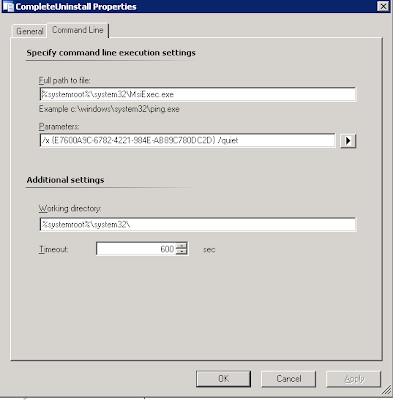
Uninstall command for Agent (RTM)
MsiExec.exe /x {E7600A9C-6782-4221-984E-AB89C780DC2D} /quiet
This gives us a task that ca be run on an agent to perform an uninstall of an agent. To run this on all agents the easiest way is to do it in a powershell script
Powershell Script to run the task for all agents
$uninstallTask = get-task | where {$_.Name -eq "CompleteUninstall"}
foreach($agent in get-agent)
{
$server = $agent.Displayname
$server
start-task -asynchronous -task:$uninstallTask -path .\Microsoft.SystemCenter.AgentManagedComputerGroup\$server
}
Save this script as a .ps1 file and then run it from the Operations Manager Command Shell. The results of these tasks will always show in the Operations Console under Task Status as failed as the Agent has been removed.
To Create the Uninstall Task
On the Authoring pane on the console create a new command line agent task called CompleteUninstall. The target is Windows Computer. The command line settings are shown below.

Uninstall command for Agent (RTM)
MsiExec.exe /x {E7600A9C-6782-4221-984E-AB89C780DC2D} /quiet
This gives us a task that ca be run on an agent to perform an uninstall of an agent. To run this on all agents the easiest way is to do it in a powershell script
Powershell Script to run the task for all agents
$uninstallTask = get-task | where {$_.Name -eq "CompleteUninstall"}
foreach($agent in get-agent)
{
$server = $agent.Displayname
$server
start-task -asynchronous -task:$uninstallTask -path .\Microsoft.SystemCenter.AgentManagedComputerGroup\$server
}
Save this script as a .ps1 file and then run it from the Operations Manager Command Shell. The results of these tasks will always show in the Operations Console under Task Status as failed as the Agent has been removed.
Subscribe to:
Posts (Atom)